Connect Jamf Pro to the Okta LDAP Interface
Jamf Pro fails the Okta LDAP test in under a second until the LDAP Interface app allows a password for the service account. The mappings below are the ones that search.
Jamf Pro’s LDAP test against Okta failed in under a second. The hostname and the attribute map were already right. The service account was the part that failed.
Jamf says it cannot communicate with the LDAP server and tells you to check the username and password. The password is right. Okta accepted it, then refused the token because the LDAP Interface app still wants a second factor. Jamf speaks LDAP. It has nowhere to type a code, and it cannot approve an Okta Verify push.
This is the directory lookup. People sign in to Jamf Pro and Self Service with SSO. The bind account is the only account that authenticates here with a password and nothing else.
The screenshots use example.com where the org domain goes. Copy the hostname and the DNs from your own LDAP Interface page.
Two different Okta LDAP features
The Okta LDAP Agent sits inside your network and syncs an on-prem directory into Universal Directory. Jamf Cloud never talks to that agent. An on-prem directory still needs something on the inside, which for Jamf Cloud is a Jamf Infrastructure Manager.
The LDAP Interface is the other direction. Universal Directory answers LDAP itself, on {subdomain}.ldap.okta.com. Jamf binds to that host the way it would bind to Active Directory. No agent, no Infrastructure Manager. Okta implements BIND, UNBIND, and SEARCH. TLS 1.2 only. LDAPS is port 636, StartTLS is port 389. Jamf wants LDAPS on 636, and you do not upload a certificate.
It is on by default. In the Admin Console, open Directory > Directory Integrations > LDAP Interface. If the list is empty, use Add Directory > Add LDAP Interface. Copy the hostname, the base DN, the user search base, and the group search base off that page before you open Jamf. The templates below only show the shape. The cell suffix is the part people mistype, and a wrong suffix fails the search after the bind has already succeeded.
The cell is part of the name. An okta.com org uses dc=okta. An okta-emea.com org uses dc=okta-emea. Preview uses dc=oktapreview. A gov org uses dc=okta-gov. Paste whatever the page shows.
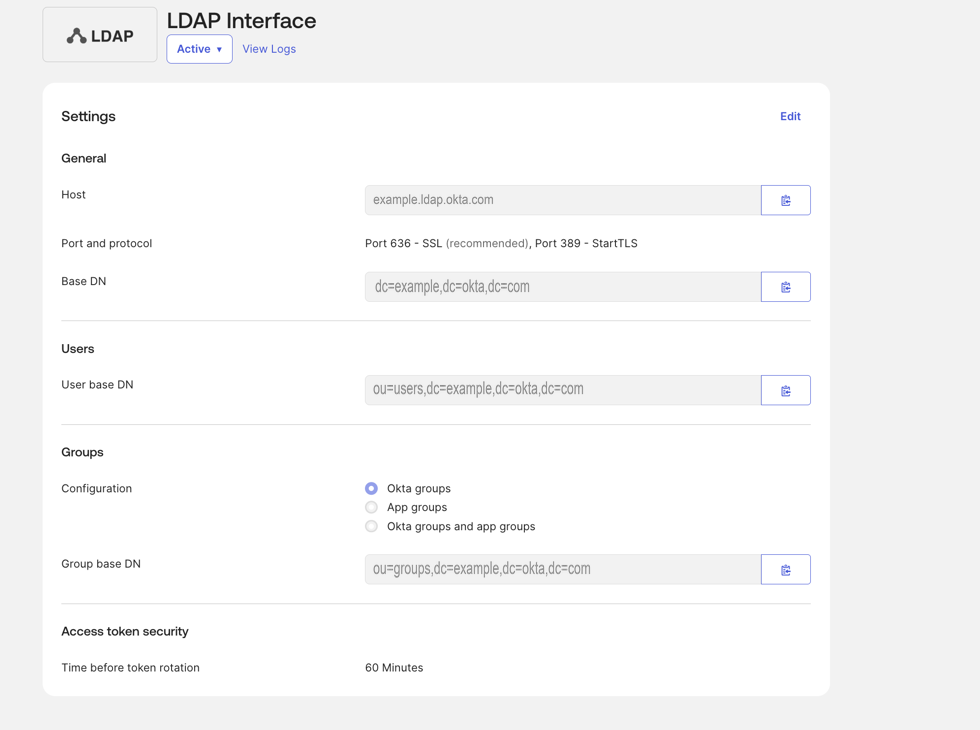
The Groups control on that page is the list Jamf can search. Okta groups, app groups, or both. Groups created directly in Okta show up with the first option. Groups imported from Active Directory often do not, which is the gap people hit when user search works and group search does not. If the group you need is missing, make an Okta group, put the same people in it with a group rule, and search for that name.
The bind account
Jamf uses one simple bind for every search. Okta requires that account to be an administrator. Read-only Administrator is enough, and the resource set has to be the whole org. A resource set pointed at one app returns insufficient access rights, E0000006, on the search. The bind can already be succeeding when that error shows up. Group membership also needs permission to view groups. Read-only Administrator on the whole org covers both.
Create a user that exists only for this. Set the password in that same admin dialog. Leave “User must change password” off, and do not send a reset email. A one-time password and a must-change password both need an interactive change, and an LDAP bind cannot do that step. An emailed reset link expires. The reset page comes back “Bad request”, and the log says “Invalid token”.
Put the user in a group that contains nothing else. I call it Jamf LDAP Bind. Everyone will be on the account too. The bind group has to be there as well, or the rules below never match this user.
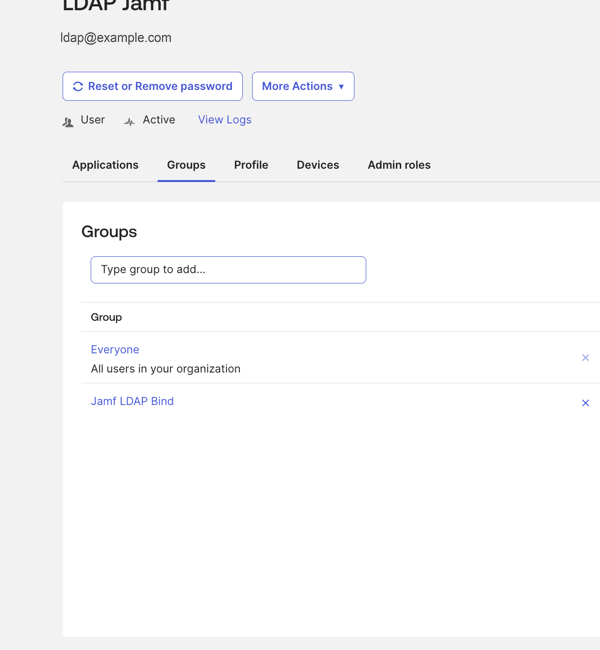
The bind DN Okta prints has no ou=users:
uid={okta-username},dc={subdomain},dc=okta,dc=comThe username is the Okta login, usually the full email. Okta takes that uid from the sign-in mapping on the app. If Jamf searches for an email and the directory returns nothing, check that mapping before you touch the Jamf search base.
Let that one account bind with a password
A Jamf bind is a resource-owner password grant. The LDAP Interface app takes the username and password and asks Okta for a token. The app sign-in policy on the LDAP Interface app allows or refuses that token.
On Identity Engine the service account gets through with three policies, and the global session rule is the one the Okta docs point at first. It is also the one that does not issue the token. Okta’s rule editor says so: when Authenticates via is LDAP interface, the “establish the user session with” choice has no effect, and the bind can still demand MFA. I set that radio to “A password” and retested. The bind got worse. Immediate deny, no push. The working position is “Any factor used to meet the Authentication Policy requirements”, with MFA not required, and the rule limited to the LDAP interface.
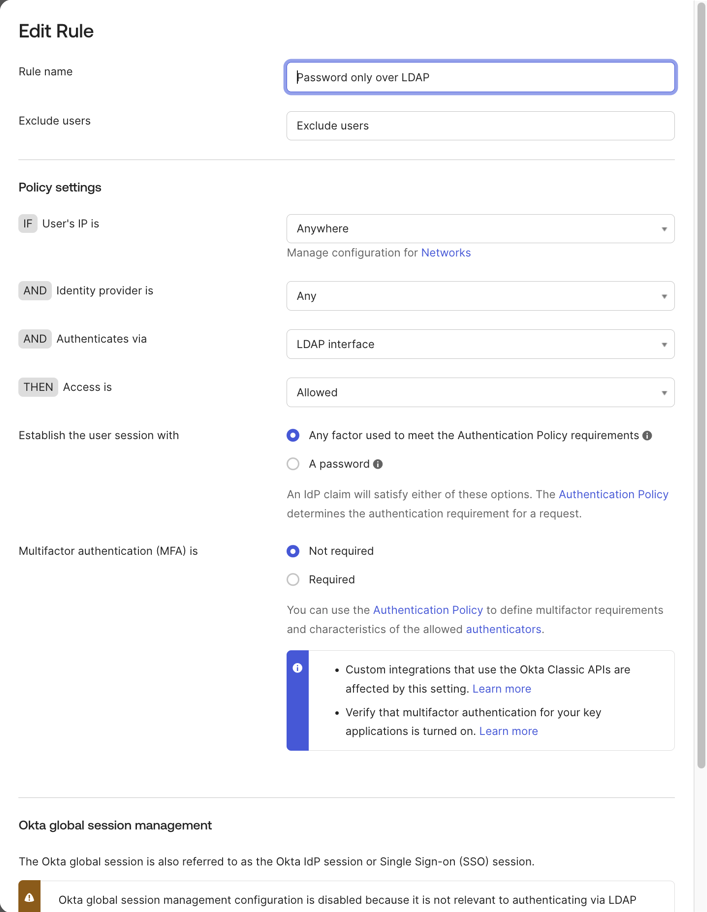
The account is an admin, so the Okta Admin Console policy applies to it. That policy is locked to at least two factor types. A chain with only Password will not save. The banner reads “Choose authentication methods that fulfill at least two of these factor type requirements.” Leave the Admin Console policy alone. The password-only exception goes on a new app sign-in policy, assigned to the LDAP Interface app and nothing else.
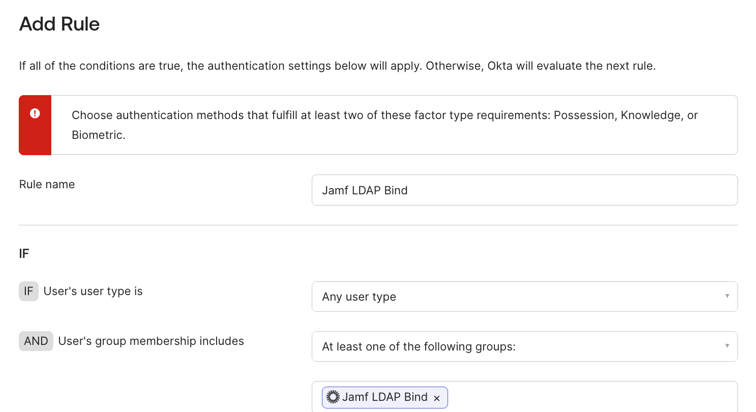
Do these three in order. Skip the group membership or the app policy and the log stays on the same deny.
Enrollment
Security > Authenticators > Enrollment. Add a policy for the bind group and move it above Default. Password required. Okta Verify and the other factors disabled. Email auto-enroll off. Password grace period none. Add a rule: any IP, the user accessing Okta and applications, enrollment denied. If this user was ever enrolled in Verify, open the user and run Reset Authenticators. The deny rule does not clear a factor that is already there.
When Verify Push is enrolled, the LDAP interface sends the push by itself. You do not add ,push to the password. Okta’s own LDAP docs say the push goes out automatically in that case. Nothing in Jamf can approve it. Okta waits, then returns LdapErrorCode=time limit exceeded, result code 3. Okta stops an LDAP request that runs longer than two minutes with that same code. The push is labeled with the country of the Jamf Cloud region that made the request. On a Frankfurt tenant that was Germany. Deny any push you did not just trigger. It is your own Save click.
Global session
Security > Global Session Policy. Add a policy for the bind group at priority 1, above Default. One rule: Authenticates via LDAP interface, access allowed, establish the session with any factor that meets the authentication policy, MFA not required. Leave the location on Anywhere until the Jamf test passes, then restrict it. Keep the LDAP interface condition on the rule. Without that condition the rule applies to every sign-in the group makes.
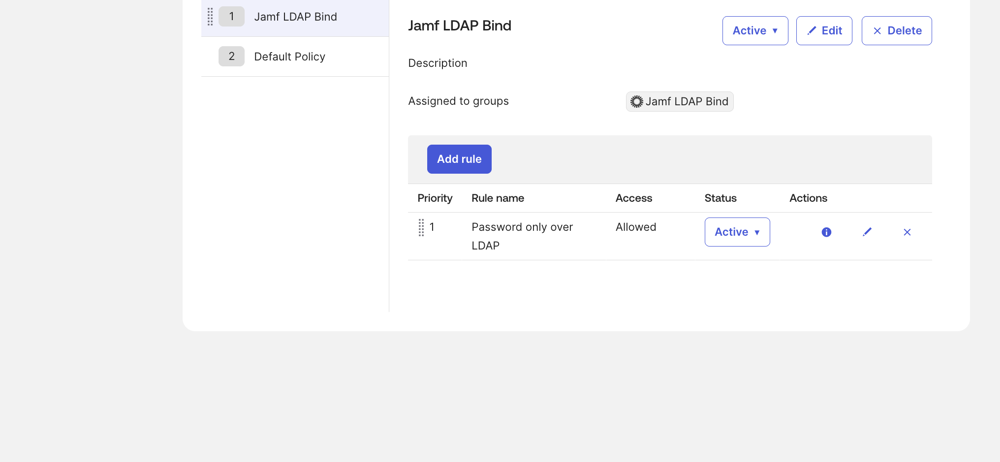
A policy with no rules does not apply. If the user matches a policy and no rule matches, Okta moves on to the next policy. First match wins.
App sign-in
Security > Authentication Policies > App sign-in. Create a policy and assign it to the LDAP Interface app only. Add a rule above the catch-all: the group is the bind group, access is allowed, and the authentication method is Password. Leave the catch-all at two factor types. That catch-all is what every other account hits if it ever binds to this app.
Do not add the password rule to the shared default sign-on policy. Every app on that policy would inherit it. Do not edit the dashboard Default Rule. A bind account with enrollment denied gets “Unable to sign in. Contact support for assistance.” on the Okta dashboard, before a password box. That is the dashboard policy. The Jamf test is the test.
Everyone cannot be removed, so the account still sees apps assigned to Everyone. Those apps stay on their own sign-in policies. Never add this group to a password-only rule on any other app.
Jamf Pro
Settings > System > LDAP servers. New server. Configure manually. The assistant has no Okta preset worth using.
Connection:
| Jamf field | Value |
|---|---|
| Hostname | {subdomain}.ldap.okta.com |
| Port | 636, SSL on |
| Bind DN | uid={okta-username},dc={subdomain},dc=okta,dc=com |
| Authentication | Simple |
| Certificate upload | none |
| Connection timeout | 15 seconds |
| Search timeout | 60 seconds |
| Use wildcards when searching | on |
Leave wildcards on so Jamf’s user picker can search a partial name. Okta’s current limitations page does not reject substring filters. The failure I was chasing never reached the filter: it died in under a second on the policy. If an exact uid returns the person and a partial name returns nothing, turn wildcards off and retest.
I raised the connection timeout from 15 seconds to 60, and the search timeout from 60 to 120, while the test was failing in under a second. That failure is a policy deny. The extra time changes nothing. The connection page below is that dead end. Put the timeouts back to 15 and 60.
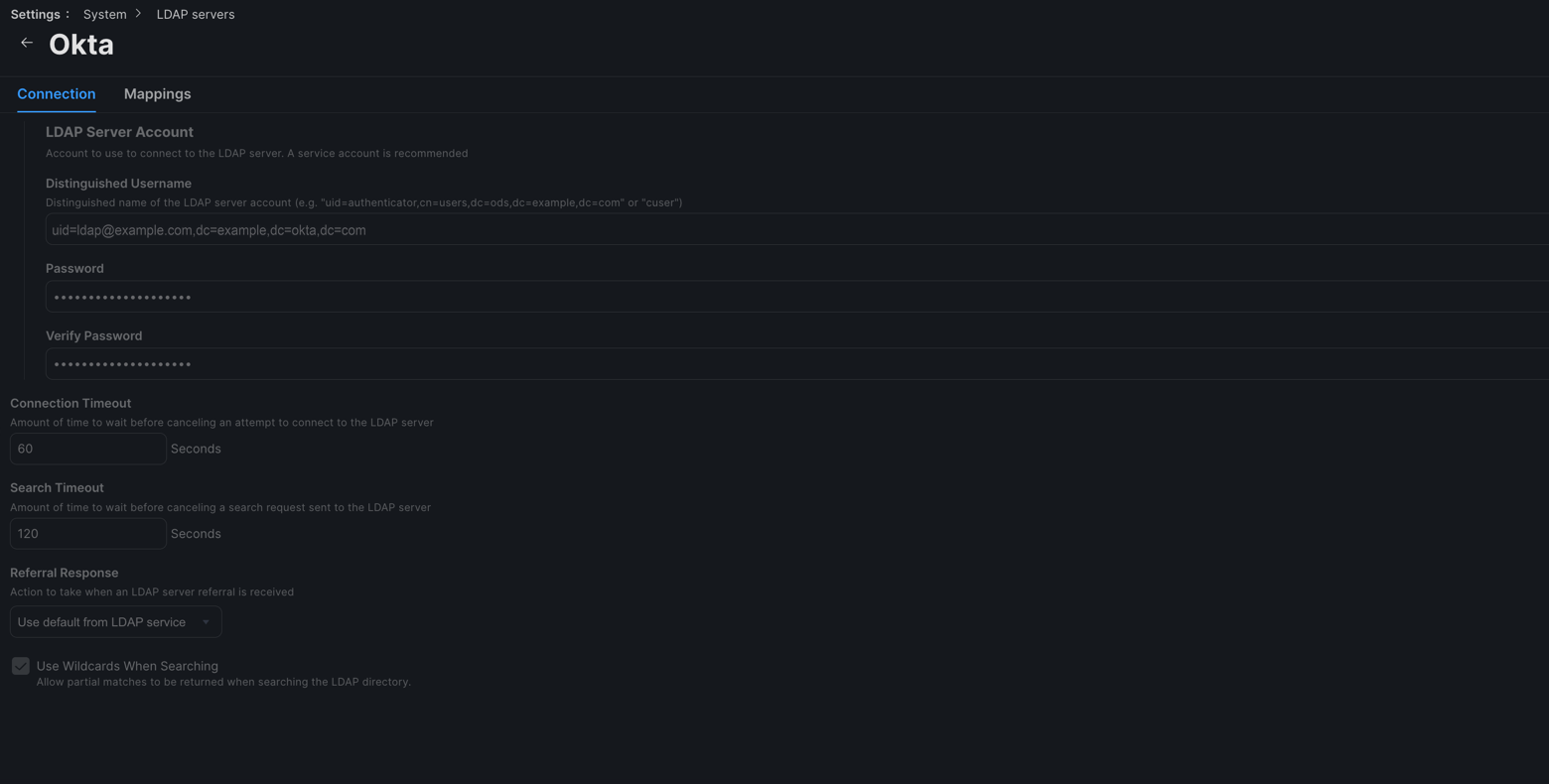
User mappings. Paste the user search base from the LDAP Interface page. It is the tighter one, ou=users, not the domain root. All subtrees from dc={subdomain},dc=okta,dc=com can still find people. The page’s base is the one to save.
| Jamf field | Value |
|---|---|
| Object class | inetOrgPerson |
| Search base | ou=users,dc={subdomain},dc=okta,dc=com |
| Scope | All subtrees |
| User ID | uid |
| Username | uid |
| Real name | cn |
mail |
|
| Department | department |
| Position | title |
| User UUID | uid |
Leave “Append to email results” empty. That field is for directories that store only the local part of the address. If the test shows a blank email, the Okta profile has no mail value. Map email to uid in that case, because the login is usually the email.
User UUID is uid. objectGUID lets the lookup succeed, then Self Service signs the person straight back out, and the same mapping signs LDAP group users out of Jamf Pro. Some configs use entryUUID instead. uid matches the Okta login. Set it before Jamf creates user records from this server. Changing it later gives you a second Jamf user for the same person.
I left phone and building blank. Department and building values also have to exist in Jamf before a mapped value will stick. Okta’s manager attribute cannot be used in a filter, so I left it alone.
Group mappings:
| Jamf field | Value |
|---|---|
| Object class | groupofUniqueNames |
| Search base | ou=groups,dc={subdomain},dc=okta,dc=com |
| Scope | All subtrees |
| Group ID | uniqueIdentifier |
| Group name | cn |
| Group UUID | objectGUID |
| Membership location | Group object |
| Member attribute | uniqueMember |
| Use the distinguished name of the member | on |
Leave “Use the LDAP compare operation” off.
memberOf on the user is a virtual attribute. Okta does not index it, it comes back only when the search asks for it, and Okta warns that it slows the search down. Jamf’s “membership location: user object” path reads memberOf. Read the members from the group: uniqueMember, and the distinguished name of the member.
If a group test returns the name and an empty UUID, change Group UUID from objectGUID to entryUUID and test again.
Test it
Save, then run Jamf’s test against a real person, not the bind account. The test binds first and searches second. A match means both worked. Then test a group by its exact name, and test that the person is a member of that group. Jamf has a separate test for each mapping tab. Do all three.
In the Okta System Log, filter on the LDAP interface. A good run is a successful bind from the service account, then a search. The client IP is a Jamf Cloud egress address for that tenant’s region.
Type the username the way Okta stores the login, including case. A search for Jane.Doe@example.com can miss when the stored value is jane.doe@example.com.
What you can do with it
Jamf lists the same jobs for any LDAP server. Look up user and location for inventory. Add Jamf Pro accounts and groups from the directory. Require an LDAP login for Self Service, for user-initiated enrollment, or during device setup. Scope policies and profiles to directory users and groups. Too many LDAP groups on one object gets slow. If you need several, put them in a smart group and scope to that.
Scope and inventory
A lookup fills User and Location from cn, mail, department, and title. Limitations and exclusions can name an Okta user or an Okta group, and only a group the LDAP Interface is set to expose will show up. Type the group name in full.
Jamf accounts
User accounts and groups can add a person or a group from LDAP, which is how an Okta group becomes a set of Jamf admins. In the setup I ship, those people still sign in with SSO. The LDAP record is there so the group, and the inventory fields, follow Okta. The bind account is never one of these accounts.
Sign-in
SSO for the admin console, for Self Service, and for enrollment. Jamf takes the username from the IdP and, because LDAP is connected, fills the rest of User and Location from the directory. Without the LDAP server, the username is the only inventory field that gets populated. Jamf’s cloud identity providers have been Entra and Google. Okta directory lookups still go through LDAP, and SSO is a separate setting. There is a SAML walkthrough for enrollment and Self Service, and Jamf now prefers OIDC through Jamf Account for administrators.
LDAP as the password prompt
Jamf can still require the directory account in Self Service, at user-initiated enrollment, and on a PreStage with Require Authentication. There is one password field. Okta documents two ways through MFA on an LDAP bind. A user enrolled in Verify Push gets the push automatically when the password is sent without ,push. A one-time code is sent as password,123456, the code glued on with a comma. The person approves the push, or types the code into that single field, while Jamf waits.
Okta gives the request two minutes and then returns result code 3. A connection timeout of 15 seconds loses a push. Raise it only on a server where you have decided people will authenticate this way. I did not ship that path. The org I wired uses SSO for the human sign-in, so I have not retested an approved push or a password,123456 string inside Jamf’s enrollment screen. Okta’s LDAP docs describe both formats.
A new hire at Setup Assistant cannot approve a push, or produce a code, for an account that has never enrolled a factor. A password that must be changed on first login cannot be changed from that screen. Platform SSO, or an enrollment-customization SSO pane, is the sign-in that has a real UI. LDAP authentication on the PreStage is the fallback for a Mac that cannot run that pane, and it does assign the computer to the user and pull the location fields. That assignment is also what you get when SSO enrollment is on and LDAP can look the person up. You do not need the LDAP password prompt to get the inventory.
Self Service signs the person out when User UUID is objectGUID. The mapping above is uid.
When the test fails
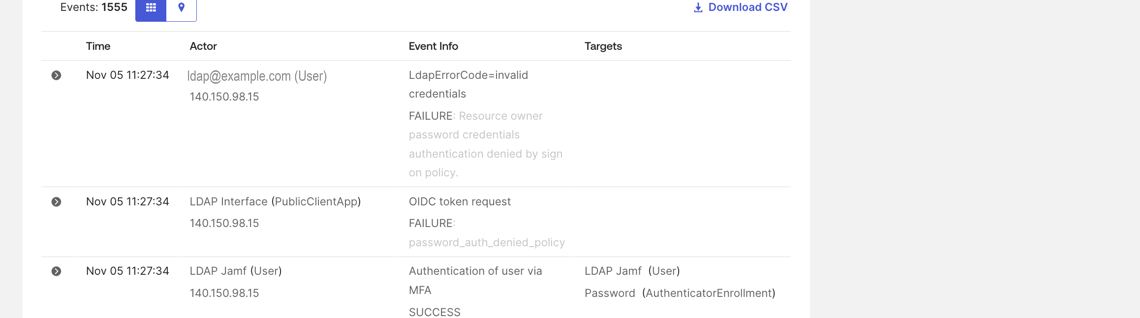
Jamf keeps saying the password is wrong. A failure in under a second is a policy deny. Read the newest unfiltered Okta log row for that second.
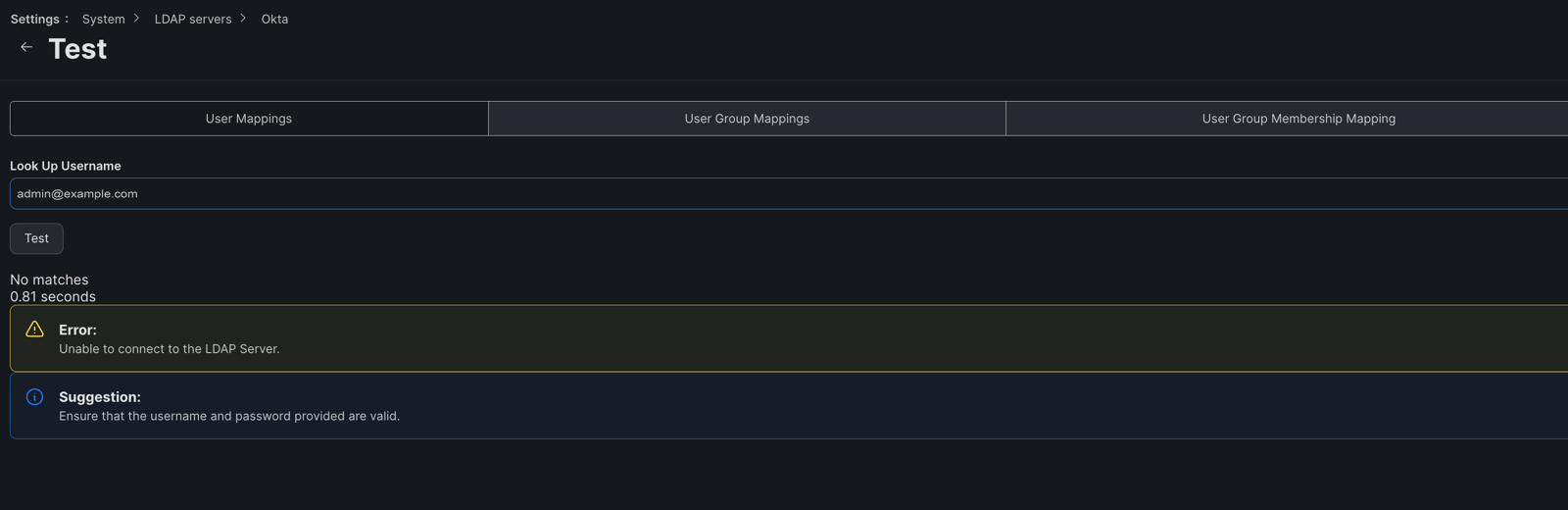
The first line, while the app policy is still wrong, is:
Resource owner password credentials authentication denied by sign on policyThe same minute can also show LdapErrorCode=time limit exceeded with result code 3, if Verify Push is still enrolled. Those are two different failures.
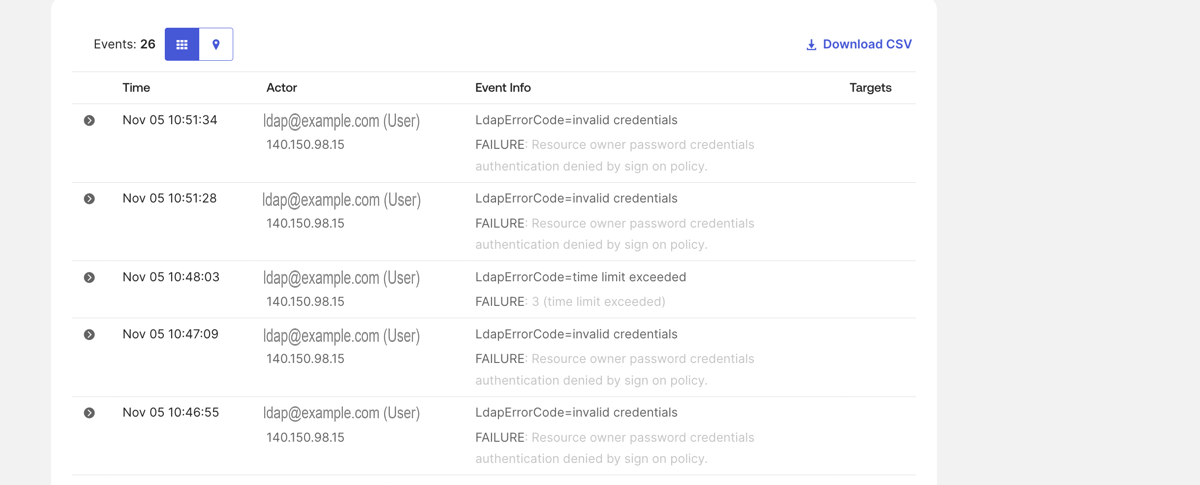
After the push is gone, filter the system log on the LDAP interface and read the unfiltered rows for that second. Three rows share the timestamp: a bind failure, a token failure, and a Password success. The token row is LDAP Interface (PublicClientApp), an OIDC token request, password_auth_denied_policy. The Password authenticator succeeded. The app refused the token.
| What Okta logged | What to change |
|---|---|
denied by sign on policy, and no Password success row |
The account is not in the bind group, or the global session rule is missing the LDAP interface condition, or that policy has no rule. |
Password success, then password_auth_denied_policy |
The LDAP Interface app is still on a two-factor policy. The dedicated app policy is missing, not assigned to that app, or its password rule is under the catch-all. |
time limit exceeded, result code 3 |
Verify Push is still enrolled. Reset Authenticators. A search that really does run over two minutes returns the same code. |
E0000006, insufficient access rights |
Read-only Administrator is missing, or the resource set is not the whole org. |
| Invalid credentials, and the log does not mention a sign-on policy | The password. Set a new permanent one in the admin console. |
| Bind succeeds, search returns no matches | The bind is done. Check the search base, the group source, wildcards, case, and that the test user exists. |
A network timeout looks different. It takes the full connection timeout, and Okta has no row at all. Jamf Cloud reaches Okta from the egress addresses in Jamf’s inbound and outbound traffic list. That page has stopped being updated and points at the current list. Use the list, not a copy from a blog.
After the test matches
The password-only rules are still Anywhere, and {subdomain}.ldap.okta.com is on the internet. In Security > Networks, add a zone with the current outbound addresses for your Jamf Cloud region. Put that zone on the global session rule and on the LDAP Interface app rule. Run the Jamf test again before you remove Anywhere. If the new test fails, the log shows the egress IP the zone missed.
Deactivate any earlier bind account. A second read-only admin left in the bind group can still read the directory with a password.
A custom admin role limited to user read and group read would be tighter than Read-only Administrator. I have not proved that role can search. The built-in role stays until a test says otherwise.
Check the scope once, on purpose. The bind group contains only the bind account. The LDAP Interface policy is attached only to that app. Its password rule names that group and sits above a two-factor catch-all. Enrollment for that group is still denied. The global session rule still says LDAP interface.
Takeaway
Copy the hostname, the base DN, and the user and group search bases off the LDAP Interface page. Bind as uid={login},dc={subdomain},dc=okta,dc=com. Map users with inetOrgPerson, uid, cn, mail, and User UUID uid. Map groups with groupofUniqueNames, uniqueIdentifier, cn, and uniqueMember read from the group object. The service account is a read-only admin with a permanent password, in a group that holds nothing else.
The service account gets a password and nothing else through an app sign-in policy on the LDAP Interface app: Password for that group, two factors on the catch-all. Jamf’s “check the password” line is what you get when that policy refuses the token. The log row is password_auth_denied_policy.
Subscribe to gen/os
New write-ups on Apple device management — real problems and the fixes that hold up. Straight to your inbox, no spam, unsubscribe anytime.
Comments
No comments yet. Start the conversation.